Abundance Normalization
Normalizing protein abundance levels is a crucial step in single-cell PNA data analysis, as it ensures that measurements are directly comparable across all cells — a prerequisite for reliable biological interpretation. In this tutorial, we will introduce and discuss the centered-log-ratio transformation (CLR), our preferred method for transforming and normalizing PNA data.
This tutorial will first provide a concise introduction to CLR and its underlying algorithm. You will then learn how to apply this method to a PNA dataset. Finally, we will discuss important considerations and potential pitfalls when applying this or any normalization strategy.
Upon completing this tutorial, you will be able to:
- Understand the necessity for and the algorithm of CLR normalization.
- Apply CLR normalization to a PNA dataset.
- Evaluate the impact of normalization on protein abundance.
- Recognize the potential pitfalls of normalization.
Why normalize?
Raw protein abundance measurements from PNA (or other antibody-based assays) are not directly comparable across cells or samples. Normalization is the step that puts abundances on a common scale so that biological differences — such as true variation in protein expression — can be distinguished from technical and compositional artifacts. Cell-to-cell variation in total signal can arise from differences in cell size, capture efficiency, or overall staining intensity. Without normalization, a cell with higher total protein signal will tend to have higher counts for every protein than a cell with lower total signal, even when their relative protein profiles are similar. Normalization removes or reduces this global scaling difference so that we can compare relative abundance patterns across cells. In addition, many downstream steps (e.g. dimensionality reduction, clustering, and differential abundance) assume that measurements are on a comparable scale; applying them to raw counts can lead to misleading results dominated by technical variation.
The CLR algorithm
Protein abundance data are compositional: what we observe per cell is a set of relative amounts that sum (or integrate) to a total. Changing the total does not necessarily reflect a proportional change in every protein; rather, an increase in one protein often implies a relative decrease in others. Methods that assume that the data live in an unconstrained Euclidean space (e.g. standard PCA on raw counts) can be misleading for compositional data.
The centered-log-ratio (CLR) transformation is designed for compositional data. This method was originally developed for CITE-seq data (Stoeckius et al., 2017) but quickly gained traction in other antibody-based assays. For each cell, CLR takes the log of each protein’s abundance and subtracts the geometric mean of the log-abundances across all proteins in that cell. This centers the data per cell and makes abundances comparable across cells while respecting the compositional nature of the data.
The implementation we use has been developed from the original by the popular single-cell software package Seurat:
## clr from seurat
clr_function <- function(x) {
  return(log1p(x = x / (exp(x = sum(log1p(x = x[x > 0]), na.rm = TRUE) / length(x = x)))))
}
As a result, CLR helps to:
- Reduce the influence of a few highly abundant proteins that would otherwise dominate the variance.
- Put all proteins on a similar scale so that low- and high-abundance markers can contribute more equally to downstream analysis.
- Provide a stable, interpretable scale for visualization and modeling (e.g. in UMAP, clustering, or differential abundance).
Thus, CLR is a good choice when the goal is to normalize PNA protein data for comparative analysis without requiring empty droplets or isotype-based noise models.
Setup
To follow this tutorial, you will need to load the following R packages:
library(pixelatorR)
library(SeuratObject)
library(Seurat)
library(dplyr)
library(tidyr)
library(stringr)
library(ggplot2)
library(tibble)
library(here)
library(limma)
library(patchwork)
library(ggridges)
Load Data
To illustrate the normalization procedure we continue with the quality checked and filtered object we created in the previous tutorial. As described there, this merged object contains two samples: a resting and PHA stimulated PBMC sample.
DATA_DIR <- "path/to/local/folder"
Sys.setenv("DATA_DIR" = DATA_DIR)
# Load the object that you saved in the previous tutorial. This is not needed if it is still in your workspace.
pg_data_combined <- readRDS(file.path(DATA_DIR, "combined_data_filtered.rds"))
pg_data_combined
An object of class Seurat
158 features across 1970 samples within 1 assay
Active assay: PNA (158 features, 158 variable features)
 1 layer present: counts
Normalizations
To apply the CLR algorithm we use the Seurat function NormalizeData. A
call to NormalizeData as below will perform the normalization and
fills the data layer of the assay (here “PNA”, the default assay if
not specified) with the normalized values. To facilitate later
comparisons, we also construct a layer with log1p-transformed data.
# Perform the standard clr normalization
pg_data_combined <- pg_data_combined %>%
  # Join counts layers of merged object
  JoinLayers() %>%
  # CLR transform data per cell
  NormalizeData(normalization.method = "CLR", margin = 2)

# Create a new assay to store the log1p-transformed counts
logged_cts <- log1p(LayerData(pg_data_combined, assay = "PNA", layer = "counts"))
log_assay <- CreateAssay5Object(data = logged_cts)
pg_data_combined[["log_assay"]] <- log_assay

pg_data_combined
An object of class Seurat
316 features across 1970 samples within 2 assays
Active assay: PNA (158 features, 158 variable features)
 2 layers present: counts, data
 1 other assay present: log_assay
Evaluate normalization
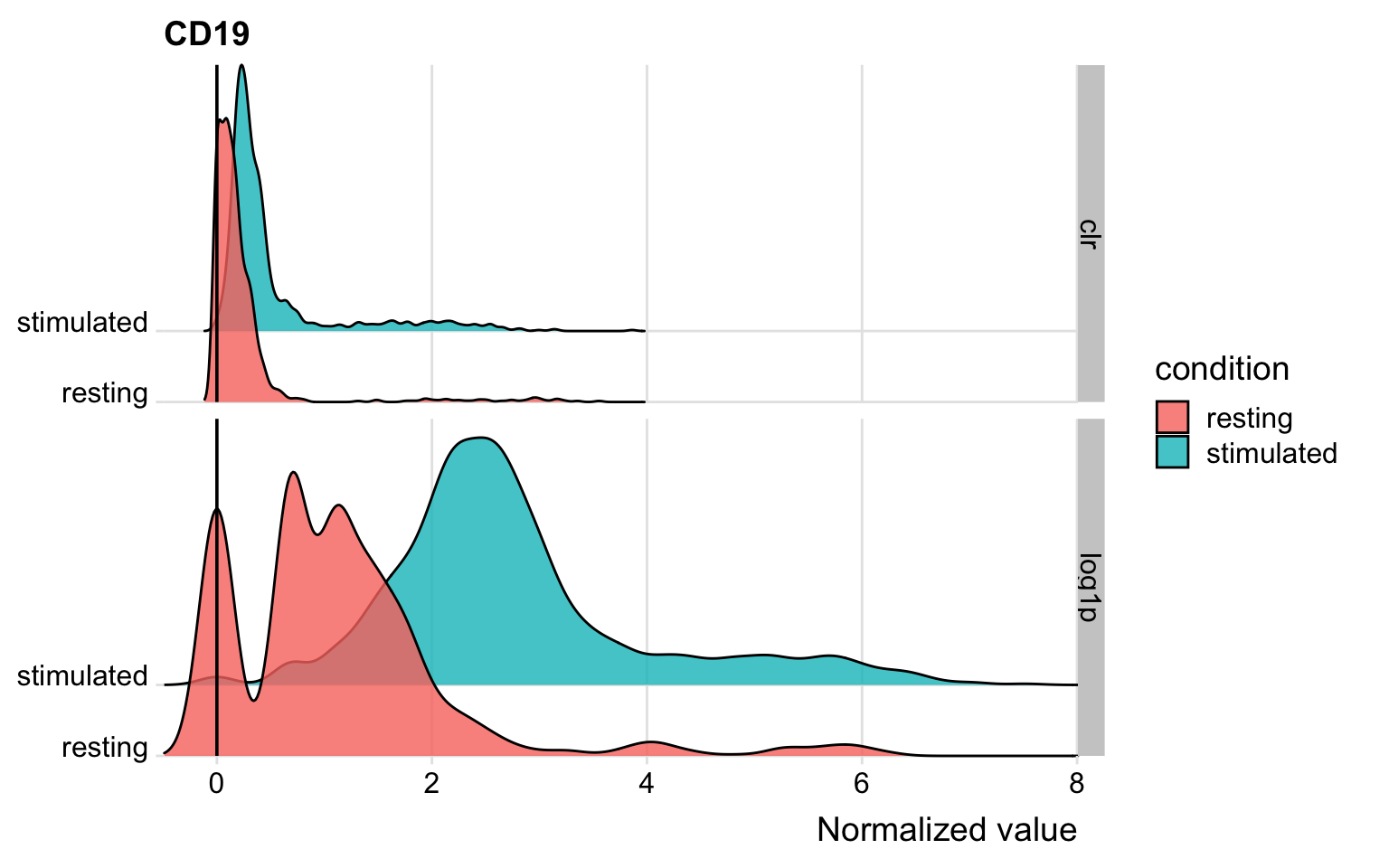
After having run the normalization step it can be helpful to visualize the overall distribution of some proteins of interest with different normalization strategies. This will allow you to assess in more detail how this procedure has modified the abundance levels of proteins. Let’s have a look at CD19 as an example.
# Visualize the normalized CD19 abundance levels
norm_obj <- FetchData(
  pg_data_combined,
  vars = c("condition", "logassay_CD19", "PNA_CD19")
) %>%
  rename(log1p = logassay_CD19, clr = PNA_CD19) %>%
  pivot_longer(all_of(c("log1p", "clr")))

norm_obj %>%
  ggplot(aes(x = value, y = condition, fill = condition)) +
  geom_density_ridges(scale = 4, alpha = 0.8) +
  scale_y_discrete(expand = c(0, 0), name = NULL) +
  scale_x_continuous(expand = c(0, 0)) +
  coord_cartesian(clip = "off") +
  theme_ridges() +
  geom_vline(xintercept = 0) +
  facet_grid(name ~ .) +
  labs(x = "Normalized value", title = "CD19")
Before we continue, let’s remove the additional assays from the object to keep the object clean.
# Remove the additional assay from the object
pg_data_combined@assays$log_assay <- NULL
CD19 is a B cell-specific protein marker. The population of B cells in these samples should be quite small and the majority of cells should be negative for CD19. With CLR, this negative population indeed has values close to zero and the positive population has values above 1, which makes it fairly straightforward to separate the B cells from the negative population. With log1p, both the negative and positive populations have high values for CD8 and could be falsely interpreted as two positive populations.
Another useful way to visualize the normalization is to create a UMAP of the protein abundance levels. We can overlay the UMAP with the normalized abundance levels of common cell type markers to see how the normalization has affected the protein expression.
DefaultAssay(pg_data_combined) <- "PNA"
pg_data_combined <-
  pg_data_combined %>%
  FindVariableFeatures(layer = "data") %>%
  ScaleData() %>%
  RunPCA(npcs = 30) %>%
  RunUMAP(dims = 1:10)

# Overlay the UMAP with the normalized abundance levels
umap_clr <- FeaturePlot(pg_data_combined, feature = c("CD4", "CD8", "CD19", "CD14"), reduction = "umap", ncol = 1, min.cutoff = 0, coord.fixed = TRUE)
Note that for later tutorials, we will continue with CLR as the default normalization method.
Remarks
As any other normalization method, CLR has limitations. However, most limitations can typically be circumvented with a good experimental design and analysis plan. Below is a recommendation, remark and good practice to keep in mind:
- Do not apply normalization blindly and always be aware of the effect of a transformation when using normalized protein counts for downstream analysis. A good practice is to visualize the abundance values for proteins you deem important in your analysis before and after normalization with, for example, violin plots. Does this correspond to what you expect and if not, ask yourself why could this be the case?
Make sure the normalized values produced by CLR are suitable for the
test you would like to perform! Some downstream differential abundance
tests demand strictly positive values as input. For example, the
FindAllMarkers and FindMarkers functions from Seurat require that
the data provided to them is strictly non-negative and do not provide
Log Fold Changes for proteins that are on average negative in one or
more groups. If you would like to use these functions as part of your
downstream analysis, we suggest to set the mean.fxn parameter to
“rowMeans” and the fc.name parameter to “difference”. By doing this
you will output the difference in normalized values between the two
groups to be compared (as opposed to the Log Fold Change). This output
is robust to negative values in the testing procedure.
Finally, let’s save the object with the CLR normalized counts for the next tutorial on Data Integration.
# Save filtered dataset for next step. This is an optional pause step; if you prefer to continue to the next tutorial without saving the object explicitly, that will also work.
saveRDS(pg_data_combined, file.path(DATA_DIR, "combined_data_normalized.rds"))